If you came looking for image to 3d guidance for web-ready models, this article explains how to turn an STL into a correctly sized GLB, with the units, orientation, and file weight a browser viewer expects.
An STL made for a slicer is not ready to drop into a web viewer: its dimensions need interpreting, and its upright direction needs changing. I’ll show you how to make a single-file GLB that displays at the intended size, then keep it light enough for a page.
The short version
- Check what units the STL’s numbers represent before converting. STL does not store units.
- Convert print-workflow millimeters to glTF meters and slicer-style Z-up orientation to glTF’s Y-up orientation.
- Use the resulting GLB in a web viewer; it contains the mesh and a neutral gray material in one file.
- If the model is dense, reduce its triangles before conversion or compress the GLB afterward. Check the result before publishing.
Start with what the STL actually contains
An STL is a list of triangles, not a complete scene. It has no unit declaration, color, textures, or UV coordinates. A dimension of 120 might mean millimeters in your print workflow, but the file itself cannot confirm that. The slicer or the person receiving it supplies the interpretation.
That distinction matters on a website. glTF, the format inside a GLB, uses meters. If numbers from a millimeter-scale STL are copied across unchanged, the viewer will treat a 120 mm object as 120 m. A web viewer may still show the object by framing it automatically, which can hide the scale error until someone tries to place it in AR or use it alongside another asset.
Orientation needs attention too. Print workflows commonly treat Z as up; glTF uses Y as up. Changing the axis during conversion lets the model stand as intended without a corrective rotation in every viewer that uses it.
For this job, I use SupaVoxel’s STL to GLB converter. It handles the unit and axis changes and produces a binary GLB for a web page. The browser tool is free to use, requires no sign-up, and converts locally rather than uploading the STL.
Convert the file and verify its dimensions
- Load the STL. Drop in a binary or ASCII STL. The converter accepts files up to 200 MB and shows a preview in the orientation the GLB will use.
- Check File units. If the STL comes from a millimeter-based print workflow, leave that interpretation in place. If it was drawn in centimeters or inches, set File units accordingly. Do this here rather than compensating with scale settings on the website: the downloaded file should carry the correct dimensions.
- Read the size in meters. Compare the displayed dimensions with the object you meant to publish. A
120 mmdimension should read0.12 min the GLB. This check is more dependable than judging size from a preview that fits the model to the screen. - Convert and download. Press Convert to GLB. The file contains the STL’s triangles and normals, with a neutral gray material. The preview is your orientation check; the meter dimensions are your scale check.
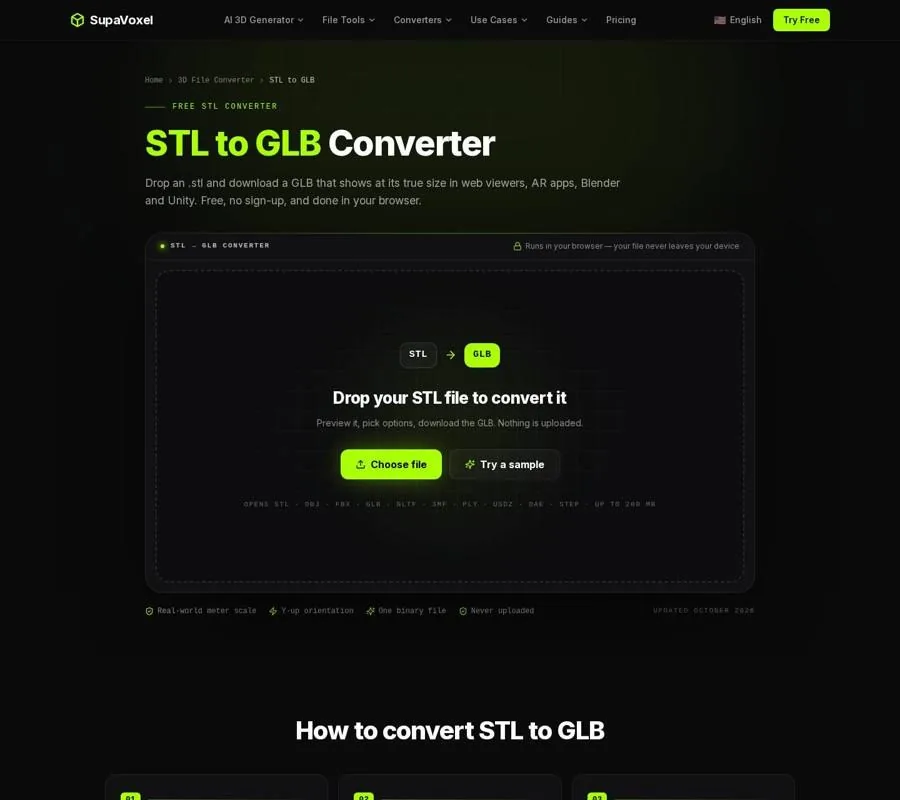
The converter lets you inspect the model’s orientation and output dimensions before downloading the GLB.
The gray material is expected. There is no color or texture data in an STL for the converter to preserve. If your page needs a particular finish, assign materials after conversion in a tool that works with GLB, then export the edited asset. Don’t mistake a correctly converted gray model for a failed conversion.
Make the asset reasonable to download
A print mesh and a web mesh serve different purposes. The print mesh may contain more triangles than a viewer needs to show the object at its on-page size. More geometry means more data for visitors to download and for their devices to handle.
I decide what to reduce by looking at the intended view. If the model will mostly appear as a small, rotating preview, inspect whether fine surface detail is visible there before keeping every triangle of a dense scan. Simplify that kind of STL before conversion, then check that its silhouette and important edges still look right. Simplification changes the geometry; the converter itself keeps the triangles it receives.
After conversion, compress the GLB if it is still heavy. A GLB made from an STL can be somewhat larger than the source because of how it stores positions and normals. The converter’s guidance is to avoid putting a 50 MB GLB on a product page and aim for a few megabytes instead. Treat that as a publishing check, not a reason to strip away detail blindly.
I keep the original STL separate from any simplified web copy. That way, reducing download size for a page does not quietly change the mesh I intend to print. Once the web asset is ready, inspect the downloaded GLB rather than relying only on the STL preview. Look at the silhouette, shading, upright direction, and dimensions again.
Put the GLB in a web viewer
Host the .glb with the assets for your page and point a GLB-capable viewer at that file. A practical option is the <model-viewer> web component: its element refers to the GLB, and it provides orbit and zoom controls. You will need to include the component’s script as part of your site setup.
The useful separation is between the asset and the viewer. The GLB stores the model at meter scale and in Y-up orientation. The viewer decides how to frame it on screen and how a visitor moves the camera. Changing camera framing can make an object fill more or less of the screen, but it does not repair incorrect dimensions inside the file.
Before publishing, I check the page at the size a visitor will actually see. Can they recognize the shape without excessive zooming? Do the normals give the surfaces the expected shading? Does the model stand upright? Then I check the file size and load the page on a phone as well as a desktop. A model that looks fine in an editing preview still has to be practical as a page asset.
For a site that offers AR, the meter dimensions become especially important. AR places an object at the size recorded in the file; it does not know what the printer or designer intended.
Add a phone AR version when the page needs one
A GLB covers the web viewer and Android AR path described for this workflow. For Apple’s AR Quick Look on iPhone and iPad, make a USDZ alongside it. SupaVoxel’s GLB to USDZ converter takes the finished GLB, shows its output size in meters, and writes a USDZ for that Apple viewing path.
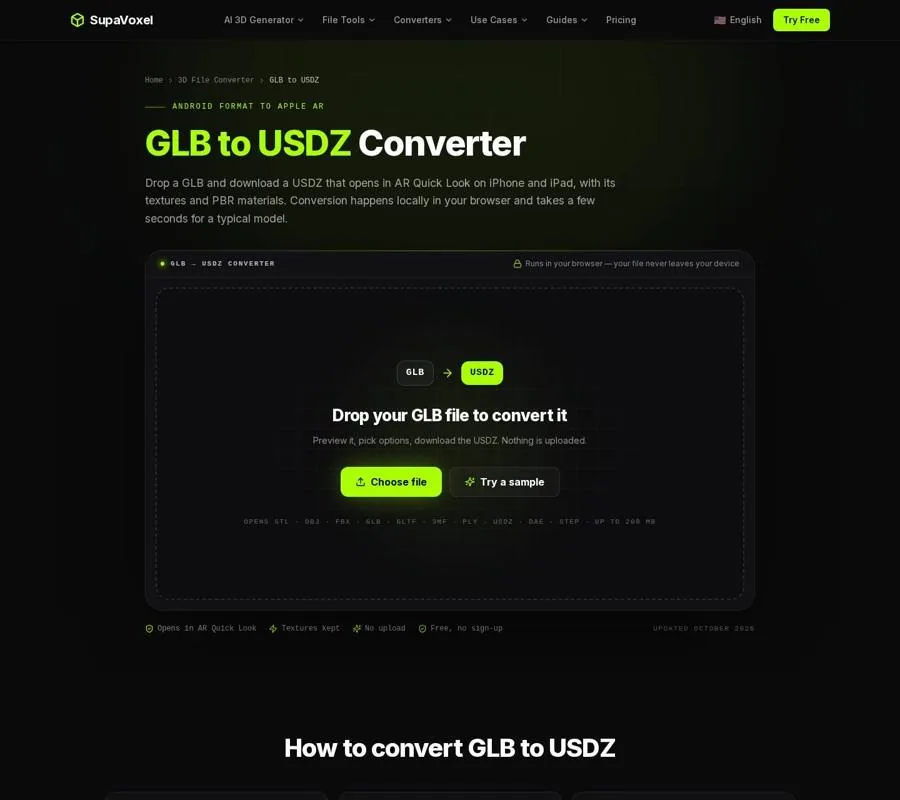
The USDZ page shows the real-world output size to check before opening the model in AR Quick Look.
Check that output size before distributing the USDZ, then test it on an iPhone. If you later add materials or textures to the GLB, convert that finished version rather than the earlier gray one. The USDZ converter keeps supported textures and PBR material maps, but it exports animation in a resting pose. An STL-derived object has no animation to lose.
If your starting asset is an animated character rather than a printable STL, use a different route. The FBX to GLB converter carries an FBX skeleton, skin weights, and animation clips into GLB. Sending that FBX through STL first would discard the information the web animation needs.
FAQ
Can I fix a wrong-sized GLB with CSS or viewer settings?
You can change how large it appears on a page, but that leaves the dimensions inside the GLB wrong. Return to the STL conversion, set the correct File units, and check the output in meters.
Why is the GLB gray when my print preview has a color?
STL contains no color, textures, or UVs to transfer. This converter assigns a neutral gray material. Add materials to the GLB afterward if the website needs them.
Should I simplify before or compress after conversion?
For a dense STL, simplify before conversion if you can remove triangles without losing visible shape. Compress the resulting GLB afterward to reduce the file you publish. Inspect the final asset after either change.