For anyone using image to 3D workflows, this piece checks what happened to CSM AI Cube, separates the confirmed outage from open questions, and explains how to verify models already saved locally.
CSM AI’s Cube site stopped loading after Google acquired Common Sense Machines, but an outage is not the same as a confirmed account shutdown. Here is what can be verified, what remains unknown, and how I would check the model files already on my computer.
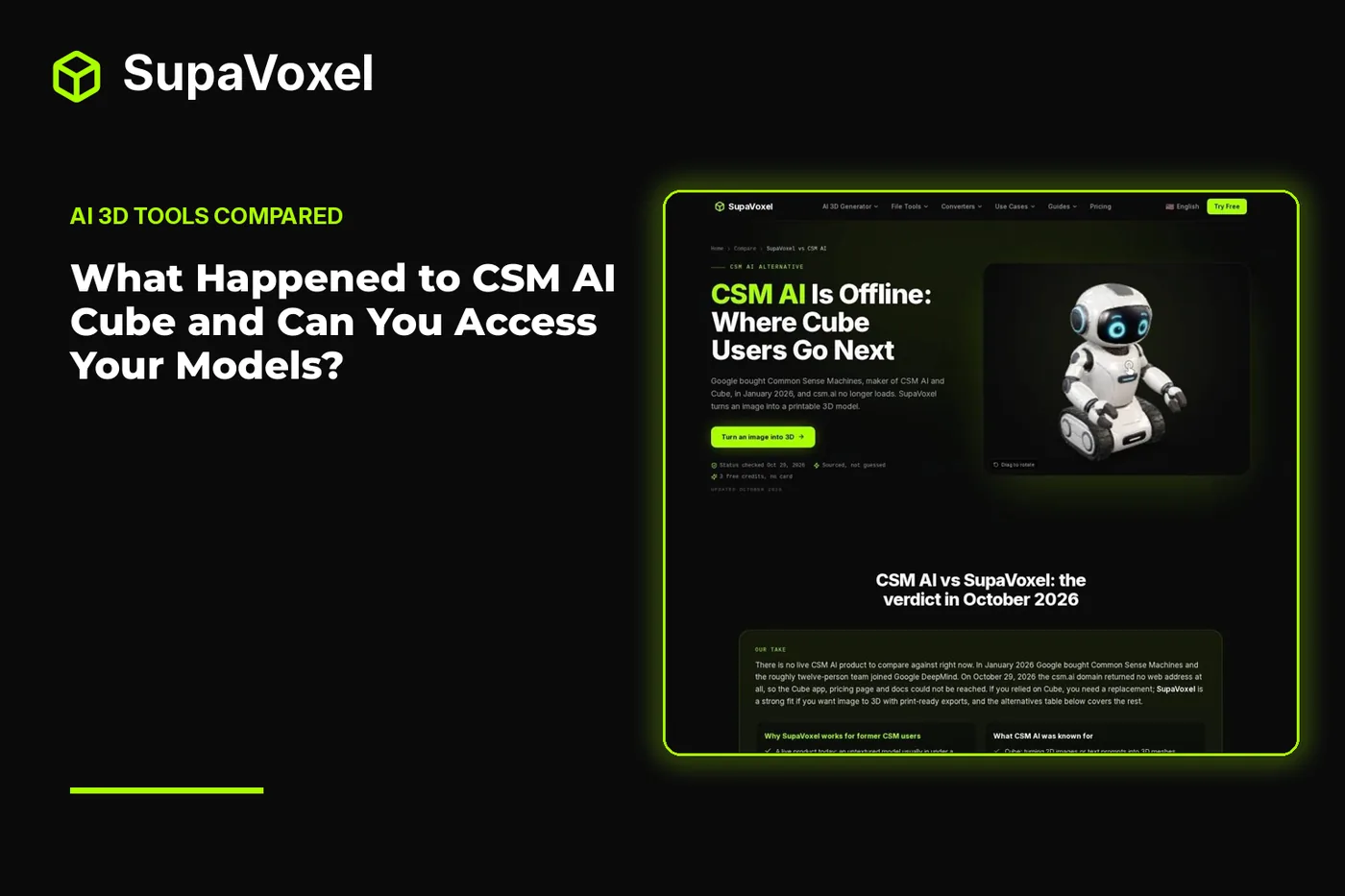
The short version
- In January 2026, Google bought Common Sense Machines; its team became part of Google DeepMind.
- On October 29, 2026, csm.ai had no address records. A November 5 recheck found that csm.ai and www.csm.ai still did not load.
- No official Cube shutdown notice was found. The outage does not establish what happened to old accounts, stored models, or API keys.
- If you downloaded models before the outage, check those local files now. Do not make a cloud workspace your only archive.
Cube was Common Sense Machines’ platform for making 3D meshes from images or text prompts. Google’s purchase in January 2026 brought the company’s team into Google DeepMind. The deal concerned spatial and 3D understanding for Gemini and robotics; it was not an announcement of a replacement Cube app.
The next observable change was at the site. An October 29, 2026 check found no DNS address for csm.ai; neither www.csm.ai nor 3d.csm.ai resolved. A November 5 recheck found that csm.ai and www.csm.ai still had no address records. Without a loading site, there was no way to test the ordinary sign-in, generation, or download flow from there.
The CSM AI status comparison lays out that timeline alongside the limits of what could be checked. I would use it as a dated status report, not as proof that every Cube account or stored file has been deleted.
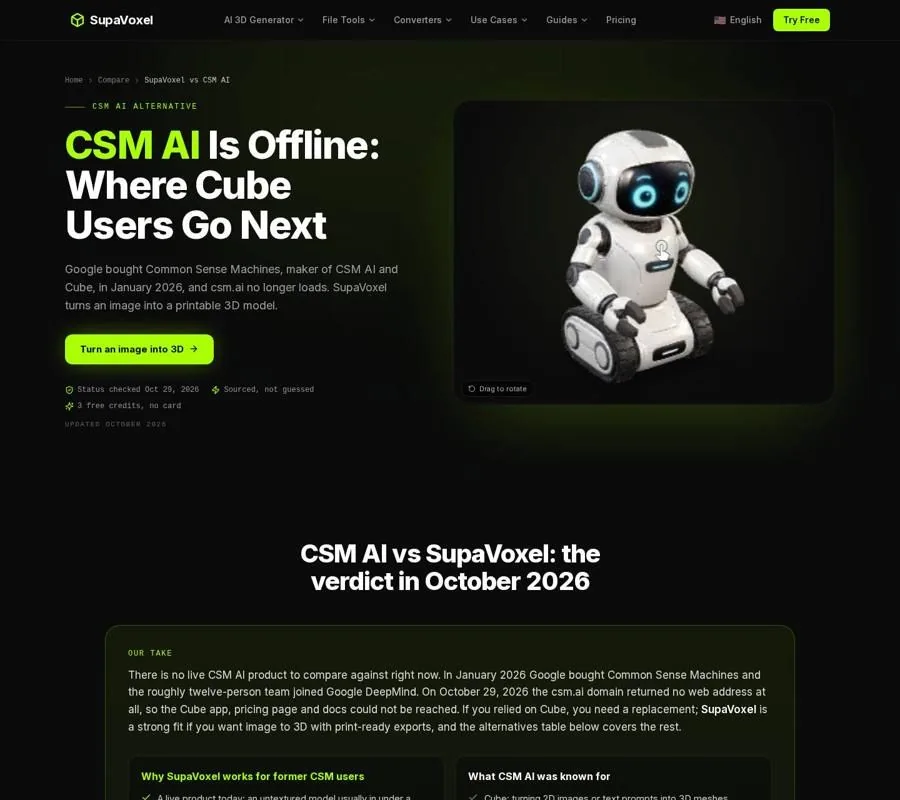
The comparison page separates the acquisition and observed outage from questions it could not verify.
What the outage does—and does not—tell you
A domain that does not resolve cannot serve the Cube app through its usual address. That is a practical access problem: you cannot rely on signing in there to retrieve a model you left behind. For someone with a deadline, I would plan around files already in hand rather than wait for the site.
It is a narrower finding than “all models are gone.” No official shutdown notice was found, and the available checks could not establish whether old accounts or API keys still work. They also could not establish an official end date, whether users’ data was exported, or whether the technology will appear in another Google product. An acquisition alone answers none of those questions.
Be careful with search results that still display Cube plans or describe a working upload screen. They may reflect the product as it was, not what you can access now. Conversely, do not tell collaborators that their stored assets were erased without evidence. The useful distinction is between a site you cannot presently use and data whose fate you cannot verify.
Check the files you already downloaded
A local model does not need Cube to continue existing. The immediate job is to find your downloads, confirm that they open, and identify anything missing before you build more work around them. I would do this without changing the originals.
- Collect the likely files. Search your download folders, project directories, and backups for Cube exports. GLB, OBJ, and FBX are model formats worth looking for. Keep related material together rather than moving only the mesh: an OBJ, for example, may rely on a separate material file and image textures. Save the source images too if you still have them.
- Make an untouched copy. Put the recovered files in a folder you can back up, then inspect copies. This protects you from accidentally replacing an original during later edits. Give each asset a recognizable name tied to its project; a folder full of ambiguous downloads becomes difficult to audit.
- Open each model in a compatible viewer or editor. Rotate it, including the back and underside. Check that the geometry is present and that any expected materials or textures appear. A thumbnail is not enough: it may show an old preview even when an associated image is missing. If a file will not open, try another application before declaring it unusable, and keep the original for a later attempt.
- Record what you actually have. Mark which assets open, which appear to lack textures, and which exist only as a preview image or source photograph. That small inventory tells you what can be reused immediately and what may need to be recreated. It also keeps “I remember making it in Cube” separate from “I have a usable export.”
This is a file check, not a Cube-account recovery method. It cannot fetch a model that exists only in a workspace you cannot access. But it gives you a reliable starting point without depending on the site returning.
If the model exists only in Cube
If you have no local export, I would first look for copies in the places where you used the asset: a game project, an art handoff, a shared folder, or a backup. Ask collaborators whether they received the actual model rather than a render. A picture of the asset can help identify it, but it is not the mesh.
Keep the original input image or prompt with your notes. If you eventually have to regenerate the model, that reference is more useful than trying to describe a remembered result from scratch. A regenerated mesh will need inspection: image-to-3D tools infer surfaces they cannot see, so a familiar front view does not guarantee the same back or thin details.
There is no verified Cube login workaround to recommend from the available status checks. I would not enter account details into a third-party site claiming it can recover Cube files. Preserve what you have, and distinguish a possible future return of access from a plan you can act on today.
Choosing a replacement for new models
Replacing Cube for future work is a separate decision from recovering old Cube assets. Start with the deliverable: a static game prop, a textured display model, or a printable object. Then check whether the plan you would buy actually includes the export format you need. STL carries geometry for a typical single-color print; it does not carry the appearance of a textured model. A nice render is therefore a poor substitute for inspecting the downloaded file.
The best AI 3D model generator comparison is useful when you want to compare yearly cost, download limits, and print preparation rather than judge tools by sample images alone. SupaVoxel offers 3 free credits at sign-up and GLB downloads; its Hobbyist plan is $25 a year for 400 credits. Every paid plan, starting at $25 a year, includes in-studio print preparation for generated models: repair, multi-color 3MF, a stand base, plane cuts with pins, and molds. Those features are not part of the free tier.

The ranking puts yearly cost and print-prep availability beside each tool’s output limits.
If you are considering an aggregator because you want to choose between different generators, read the 3D AI Studio alternative comparison for that specific trade-off. As of October 2026, 3D AI Studio offered a selection of models, plus rigging, FBX, and an API; its listed costs varied with the model selected. That flexibility may matter more than a flat cost per generation.

The comparison shows why choosing a generator and budgeting for print work are different decisions.
For a game-asset workflow, the Sloyd AI comparison is relevant instead: Sloyd offers templates, plugins, rigging, and animation that SupaVoxel does not. Its Plus plan was listed at $150 a year as of November 2026. Do not buy a replacement solely because it can produce a mesh; buy it because it produces the kind of file your next step requires.
Keep the next archive outside the app
The lesson I take from Cube’s outage is about ownership of working copies, not a prediction that every hosted tool will disappear. Download a model when you decide to keep it. Store the source image, the exported model, and any separate texture files together. Open the export before treating the job as finished.
For work you need to revisit, retain an untouched copy as well as any edited version. Note which application opens it and what you intended to do with it. If you later change generators, those files give you something concrete to compare—and something usable even if the original workspace is unavailable.
FAQ
Is CSM AI officially shut down?
No official shutdown notice was found in the cited status checks. The site was offline on October 29, 2026, and csm.ai and www.csm.ai still had no address records at the November 5 recheck. “Offline” is the supported description; a formal closure date is not confirmed.
Can I still log in to Cube and download my models?
That could not be verified while the site did not load. If you previously downloaded an export, you can inspect that local file without logging in. Do not assume that an asset left only in Cube is recoverable—or that it has been deleted.
Are my saved Cube models still usable?
A previously downloaded GLB, OBJ, or FBX can be opened in compatible software without the Cube service. Check the mesh and its textures before relying on it, particularly if related files were stored separately.